Building a Volunteer Task Board (Part 2)
Setting up Google service account credentials so a serverless backend can securely access Sheets and Drive.
Thank you for checking out part 1! In part 2, we are going to figure out how to build the web app without the Apps Script.
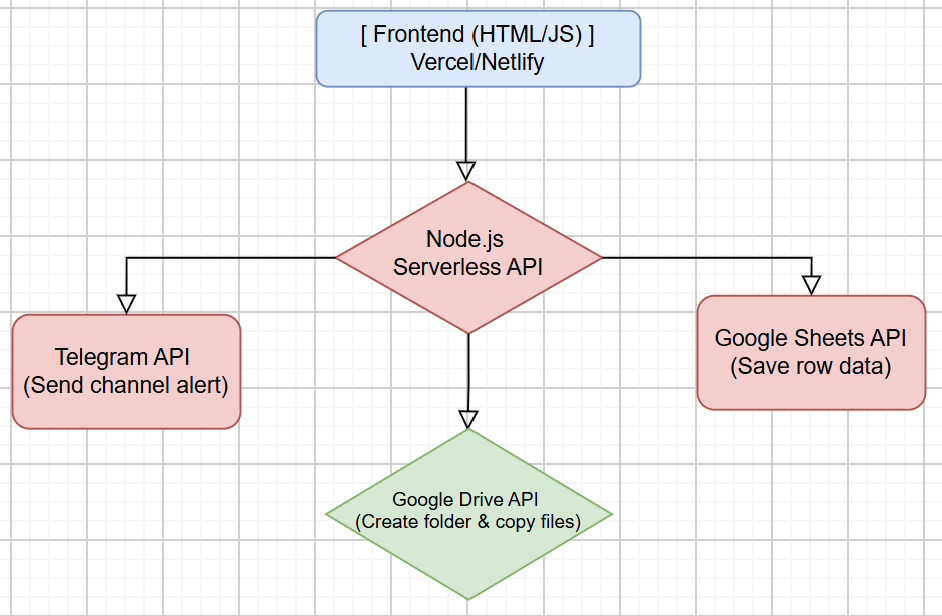
Now that we are going to remove the Apps Script but still use Google Sheets as a database. We wanted our frontend web app to talk to a lightweight serverless backend (like a Node.js function hosted for free on Vercel or Netlify), which communicates directly with the Google Sheets API and Google Drive API.
This is the updated architecture:
Step 1: Set Up Google Service Account Credentials
Instead of Apps Script using your personal Google account automatically, we use a Google Service Account (a bot account with permissions) for our Node.js backend.
1. Go to the Google Cloud Console.
2. Create a new project (e.g., WDS-Ops-Portal). Then head over to API Services > Enabled APIs and services
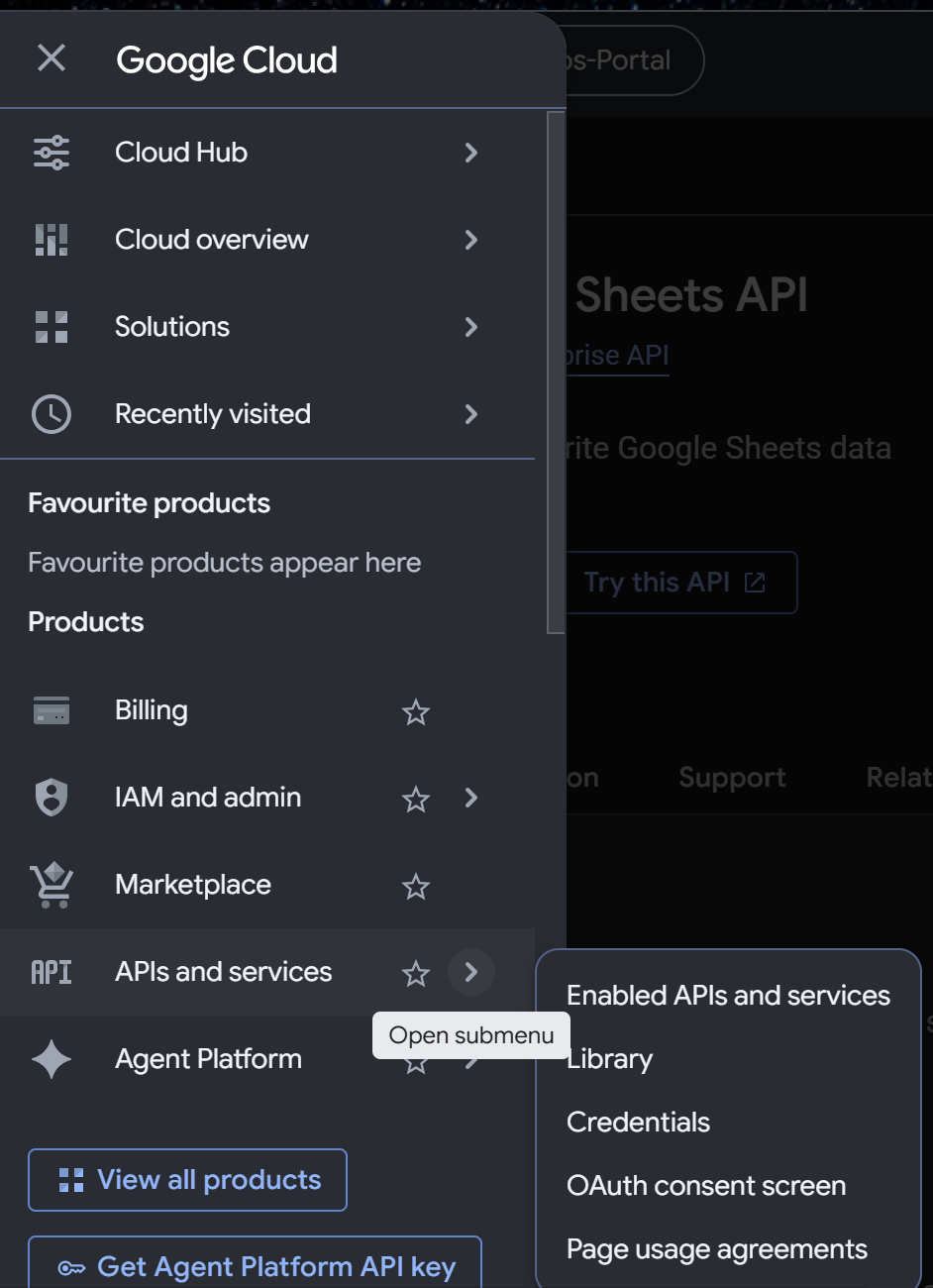
3. Enable two APIs in the API Library:
-
Google Sheets API
-
Google Drive API
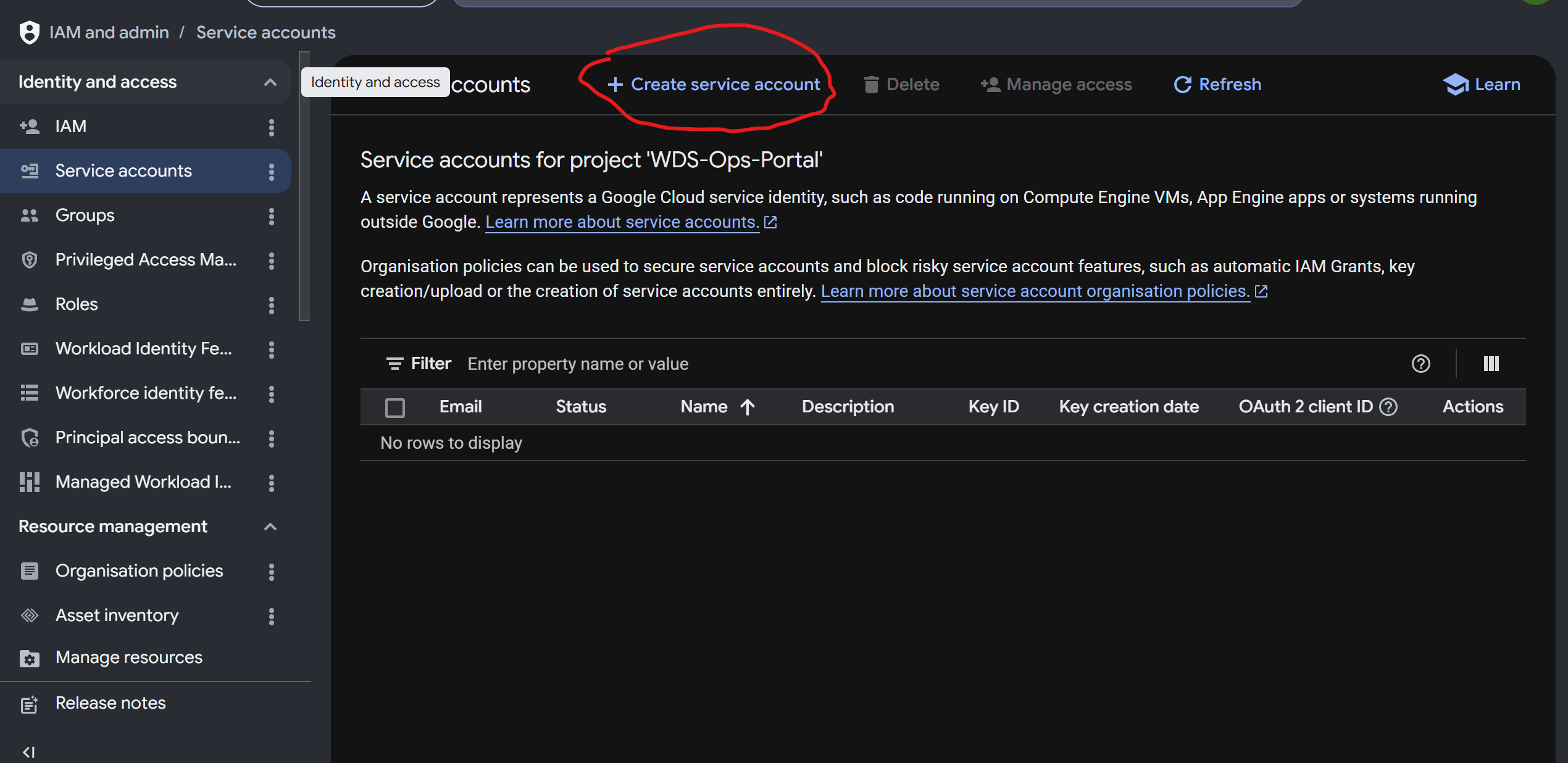
4. Go to IAM & Admin > Service Accounts and click Create Service Account.
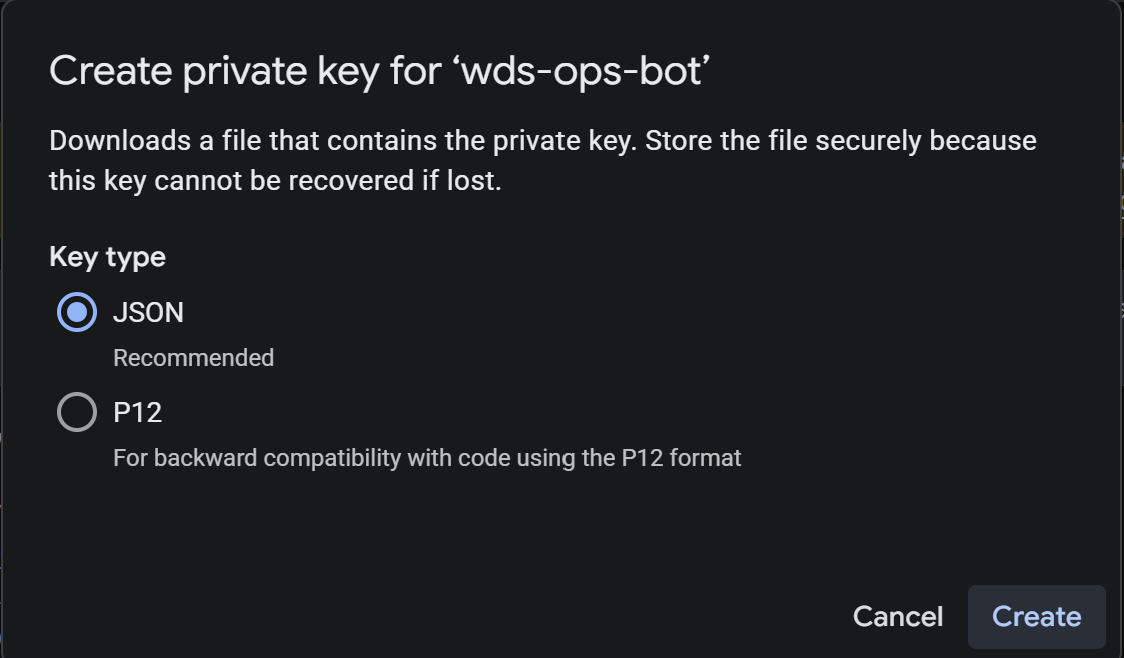
5. Create a Key (JSON format) and download it. This contains your client_email and private_key.
6. Next, open your Google Sheet database and click Share. Share it with the client_email address as an Editor. Share your Google Drive template folder with the client_email address as an Editor.
🔧 Enjoyed the read?
Next up, I’ll walk through Step 2 - building the Node.js backend API.
If this gave you a new way to think through the problem, follow along. I write about full-stack builds, system design, and geospatial engineering: from career platforms to ride-sharing architecture, as I ship them.
Let’s connect:
~ Aishwarya